How to Calibrate Camera Optics
From iPi Docs
Contents
Introduction
Calibration of camera optics is required to find out the values of the following parameters:
- Focal length
- Shift of camera principal point from the center of image
- Radial distortion parameters (2 — 4 coefficients)
- Pixel aspect ratio (optional)
- Pixel shear (optional)
This procedure is strongly mandatory for modern wide-angle cameras including action cameras. The thing is that these cameras has significant distortion.

Recording of Calibration Video
- Mark camera by some label to distinguish it from others.
- Set view-angle and resolution you're going to use during motion capture session(s).
- Tip: 720p (1280 x 720) resolution is recommended for full body motion capture needs in most cases (except very large capture area).

- If your camera has zoom and/or auto-focus features then these features must be turned off before calibration because this procedure is valid only for fixed optics.
- Run iPi Recorder and click Calibrate Camera Optics button in toolbar:


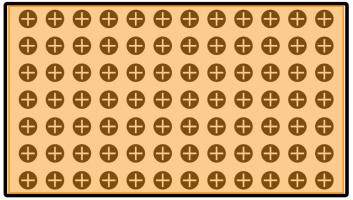
- To calibrate camera optics special calibration pattern is used. You have to record this pattern shown on computer screen from different view points.
- Click Show Pattern button in toolbar of PATTERN tab of Camera Optics Calibration tool:

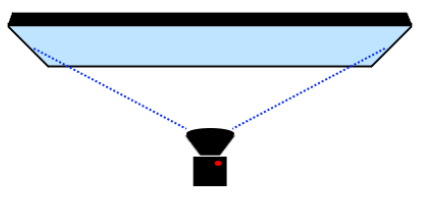
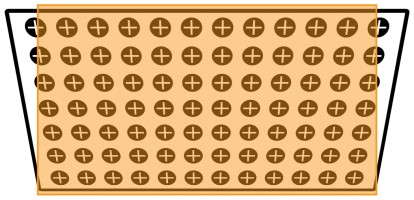
- Start video recording and shoot this pattern from different view angles. For each view:
- Ensure the pattern fills most of the frame. It's OK if the whole screen doesn't feet into the frame.
- Hold the camera still for a second.
- We recommend to use the following five view angles:
| View Angle | |||
| 1. Front |  |
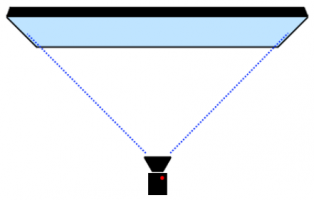 |
 |
| 2. From the left |  |
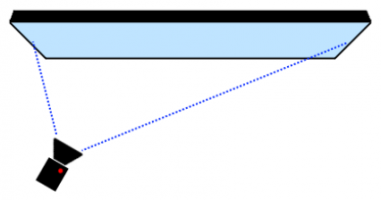 |
 |
| 3. From the right |  |
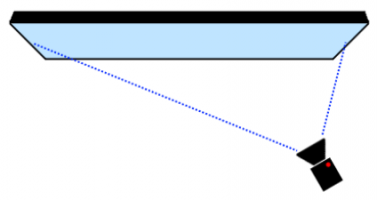 |
 |
| 4. From the top |  |
 |
 |
| 5. From the bottom | |
|
|